


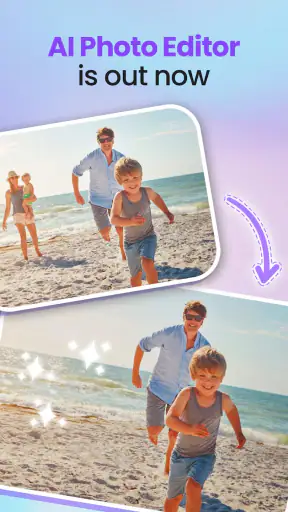


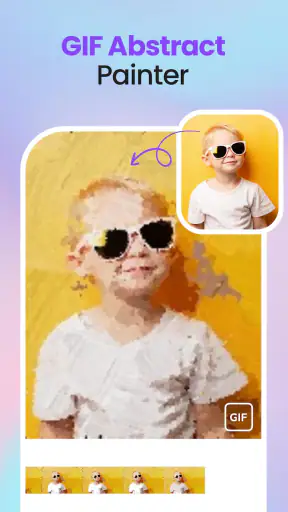


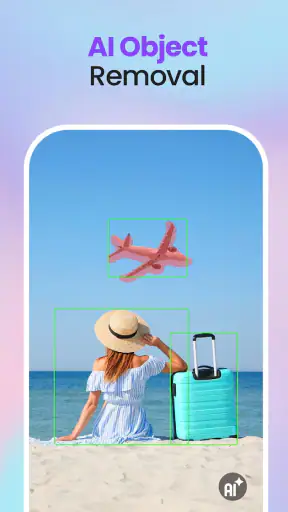

AI Photo Enhancer: Remove Item is the kind of photography app I reach for when a picture is almost right but one distracting detail ruins it. A stranger in the background, a sign, a cable, or an unwanted object can pull attention away from the subject, and the app’s AI editing tools are designed to deal with exactly that sort of problem. My overall view is positive: it is approachable, useful for quick fixes, and more focused than a full desktop editor. At the same time, it is not a substitute for careful manual retouching when the background is complicated or the result needs to look perfect.
The app comes from FALCON GAME and is available as a free photography app for Android. It has reached over 5 million installs and holds a 4.4 average from around 20 thousand ratings, which suggests that its simple editing approach is connecting with a broad audience. I can understand that appeal. The workflow is aimed at people who want to improve a photo without learning layers, masks, cloning tools, or a long list of professional controls.
What the editor does well in everyday use
Removing distractions without opening a full editing suite
The most useful part of the experience is the directness of the object-removal workflow. Instead of treating retouching as a complicated project, I can think of it as a quick correction: choose a photo, identify the unwanted area, and let the editor rebuild the surrounding space. That makes sense for ordinary images rather than studio work. A holiday photo with a bin near the edge, a family picture with a passerby behind the group, or a product shot with a stray item in the frame are all situations where a focused tool can be more convenient than a general photo editor.
The important thing is to make the selection as precise as possible. I get better-looking results when I mark the entire unwanted object, including its shadow or small connected parts, rather than removing only the most obvious section. Leaving a thin edge behind can create a more visible artifact than the original distraction. On the other hand, painting far beyond the object may give the AI too much surrounding information to reconstruct, especially near faces, text, repeated patterns, or sharp architectural lines.
This is one of the app’s less obvious strengths: it rewards a deliberate two-pass workflow. I first remove the main object, then inspect the edited area at a closer view and clean up leftovers with a smaller selection. That approach is more reliable than expecting one broad stroke to solve everything. It also helps when an object has a narrow stem, cable, handle, or shadow that is easy to overlook on the first pass.
Background removal for quick creative edits
The background-removal function gives the app a second useful role. It is not limited to repairing a photograph; it can also separate a subject from its surroundings so the image can be reused in another design or composition. I find this especially practical for profile images, simple product presentations, social posts, and informal collages where the goal is speed rather than precise commercial masking.
Edges are where expectations need to stay realistic. Hair, loose fabric, transparent objects, and foliage are much harder to separate cleanly than a person standing against a plain wall. A clean background gives the AI a clearer boundary, while a busy scene can produce rough edges or remove small parts of the subject. I would use the result directly for a casual post, but I would inspect it carefully before using it in a polished graphic.
A useful habit is to choose the replacement background only after checking the cutout against a contrasting color. Light edges can disappear on a pale background but become obvious on a dark one, and the reverse is also true. This simple check helps reveal whether the subject has been separated cleanly. It is a practical reason to treat background removal as a starting point rather than an automatic final result.
Enhancing photos without overcomplicating the process
The enhancement side is aimed at improving the overall impression of an image rather than giving me a complete manual color laboratory. That makes it suitable for photos that look soft, dull, or less clear than expected. I like this kind of tool when I want a quick improvement before sharing an image, particularly if I do not want to adjust exposure, contrast, sharpness, and color separately.
There is a trade-off with any automatic enhancement. A stronger correction can make a picture appear clearer at first glance, but it may also exaggerate texture, create harsh edges, or make skin look less natural. I recommend comparing the edited image with the original before saving or sharing it. If the subject starts to look overly processed, a lighter treatment is usually more convincing than pushing the effect simply because the preview looks more dramatic.
The app works best when I use its tools in a sensible order. I would remove unwanted objects first, separate the background only if the image needs that treatment, and enhance the final composition afterward. Enhancing too early can make unwanted details more pronounced and may make later retouching less forgiving. This sequence is a small but meaningful improvement over tapping through the tools in random order.
Where the AI starts to struggle
Object removal is not equally dependable across every photograph. It has an easier job when the unwanted item sits against a plain, consistent background. It becomes less predictable when the object crosses a face, overlaps a hand, interrupts a strong geometric line, or sits in front of repeating details such as railings and brickwork. In those cases, the app has to guess what should continue behind the object, and a plausible guess is not always a faithful reconstruction.
Text is another difficult case. Removing a small label from a simple wall may work well, but editing near signs, book pages, screens, or patterned lettering can leave warped shapes. I would not rely on the app to preserve exact visual structure in a demanding image. For a casual snapshot, an imperfect patch may be acceptable; for an image where accuracy matters, a dedicated manual editor remains the safer choice.
Background removal has a similar limitation around fine boundaries. The result can be convincing at the normal viewing size while showing small halos when enlarged. That is not necessarily a problem for a social post, but it matters for printing or placing the cutout over a strongly contrasting design. The app saves time, but it does not remove the need for a visual inspection.
Cost, access, and what to expect before installing
AI Photo Enhancer: Remove Item is free to install, which makes it easy to try without committing to a purchase. The app is rated for Everyone, and its current version is 1.6.3. It requires Android 11 or newer, so people using older phones may need to look elsewhere even if the editing concept suits them.
There are in-app purchases ranging from $1.99 to $69.99 per item. That wide range is worth keeping in mind before treating the app as a completely free long-term editor. I would begin with the free experience and decide whether the available tools justify any optional spending for my particular workflow. Someone who edits only an occasional image may find a paid upgrade difficult to justify, while a frequent social-media creator may value faster access to the functions they use repeatedly.
The app was released on August 5, 2024, and the developer is FALCON GAME. Those details do not change how the editing tools feel, but they are useful context when deciding how much to rely on the app for an important archive or a professional routine. I would keep original photos separately and treat the edited copies as working versions, especially when experimenting with object removal or enhancement.
A realistic scenario: fixing a travel photo
Imagine I take a photo in front of a landmark and notice a rubbish bin, a signpost, and two people near the edge of the frame. I would start by cropping only if that improves the composition without cutting away something important. Then I would remove the bin with a compact selection, inspect the ground for repeated marks, and handle the signpost separately rather than drawing one huge area over the entire corner.
If the people overlap the landmark, I would be more cautious. Removing them may cause the app to invent parts of the building, paving, or railing. I would zoom in and decide whether a small imperfection is less distracting than an obviously reconstructed background. This is an important judgement call: AI removal is not automatically better than leaving a minor background detail in place.
After the cleanup, I would use enhancement lightly. Travel images often contain bright skies and darker foregrounds, so an aggressive adjustment can make the sky look artificial or bring out excessive noise in shadows. The final check would be made at the size where I plan to share the picture, because a result that looks fine on a phone may reveal problems when enlarged.
How it compares with the usual alternatives
Compared with a conventional gallery editor, this app offers a more specialized route to AI-assisted cleanup. A standard gallery may be faster for cropping, rotating, or applying a familiar filter, but it usually does not provide the same focused object-removal experience. If my only goal is a quick correction, a dedicated tool is more convenient than searching through a large editing menu.
Compared with a full mobile editor, the advantage is simplicity. Professional-style apps generally give more control over masks, layers, healing, curves, and selective adjustments. They are better when I need exact placement, repeatable edits, or careful control over every part of an image. The cost of that flexibility is a steeper learning curve and a slower workflow. I would choose this app for a fast, one-off repair and a more advanced editor for a campaign image, detailed portrait retouch, or design that must remain consistent across multiple files.
Compared with a desktop editor, the difference is even clearer. Desktop software remains preferable for large images, intricate selections, typography, and work that needs close inspection. The phone-based approach wins when the photo is already on my device and the result only needs to be good enough for immediate sharing. That distinction helps set the right expectations: this is a convenience tool, not a replacement for professional post-production.
Who will get the most from it
I would recommend this app to casual photographers, travelers, students, social-media users, and anyone who frequently notices small distractions after taking a picture. It is particularly useful for people who find traditional editing software intimidating. The combination of object removal, background separation, and automatic enhancement covers several common problems without demanding advanced knowledge.
It also suits users who prefer to experiment. A photo can be duplicated mentally or saved as a separate version before editing, allowing me to try a removal, compare it with the original, and decide whether the change actually improves the image. That is a better habit than assuming every AI correction should be kept. The app is most valuable when it supports my judgement rather than replacing it.
I would be less likely to recommend it as the main tool for photographers who need pixel-level control, transparent editing decisions, or reliable results on complex images. It is also not the ideal choice for someone who edits large batches and needs a consistent, repeatable process. In those cases, manual tools or a more complete editor may save time in the long run because they offer better control over exceptions.
My final assessment
AI Photo Enhancer: Remove Item succeeds because it focuses on problems people actually meet in everyday photos: unwanted objects, messy backgrounds, and images that need a quick lift. Its strongest quality is not that it makes every edit flawless, but that it lowers the effort required to attempt a useful correction. With careful selections and a willingness to inspect the result, I can turn several disappointing snapshots into shareable images in a short session.
The limitations are equally clear. Busy backgrounds, fine edges, text, faces, and overlapping objects can expose the weaknesses of automated reconstruction. The free entry point is appealing, but the in-app purchase range means I would check my needs before spending money. I would also preserve the original image and avoid treating the first generated result as final.
My recommendation is straightforward: try it if you want a friendly Android photography tool for quick repairs and light enhancement, especially when a full editor feels excessive. Skip it as your primary solution if your work depends on exact retouching or professional consistency. For the right audience, its best value is the fast path from “almost usable” to “good enough to share.”


